Selection Click Events
The Selection Click Events window allows you to configure actions to be performed when the user clicks on an object.
To remove an existing click event from the selected object(s), select the No Action option from the Selection Click Events window.
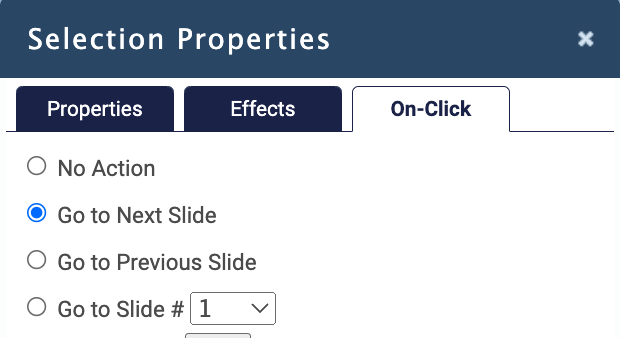
The following click events are available:
Go to Next Slide
This takes the user to the next slide in the module (just as if they clicked the Next button in the navigation bar) when the user clicks the object. If the user is on the last slide of the module and this click event is used, clicking the object will complete the module. When using the Go to Next Slide click event on a slide that uses a slide timer, the navigation to the next slide will be disabled for amount of time specified by the timer. For more information of using slide timers consult the Slide Timer section of this manual.
Go to Previous Slide
This takes the user to the previous slide in the module (just as if they clicked the Back button in the navigation bar) when the user clicks the object. If the user is on the first slide of the module and this click event is used, clicking the object will do nothing. When using the Go to Previous Slide click event on a slide that uses a slide timer, the navigation to the previous slide will be disabled for amount of time specified by the timer. For more information of using slide timers consult the Slide Timer section of this manual.
Jump to Slide
This takes the user directly to the specified slide number when the user clicks the object. If the ‘slide number to jump to’ does not exist in the module and this click event is used, clicking the object will do nothing. When using the Jump to Slide click event on a slide that uses a slide timer, the navigation to the target slide will be disabled for amount of time specified by the timer. For more information of using slide timers consult the Slide Timer section of this manual.
Play Sound
This plays an audio file when the user clicks the object. To select an audio file to use, click the Pick button and select an audio file from the Axis File Library or upload and insert and audio file from your computer. Audio files must be in .mp3 format. Once an audio file has been selected, use the Play button to preview the sound that your users will hear upon clicking on the object. Note: The Play Sound click event uses a player hidden in background completely separate from the Slide Narration player. If the slide is using a narration that is currently playing and the user clicks an object that is using the Play Sound click event, both the narration and the sound will play simultaneously.
Open Webpage or Resource
This opens a webpage or a file in a new browser tab/window when the user clicks the object. To open a webpage in a new window, enter the full URL to the webpage input field below the Open Webpage or Resource option (i.e. http://www.atrixware.com/). To select a file/resource like a PDF, Word Document, etc. click the Pick button and select a file from the Axis File Library or upload and insert a file from your computer. Note: When using a resource, the method the file is opened is dependent on how the browser would normally open that type of file. The user will also need to have software installed on their computer to open/handle the kind of file you’re opening (i.e. MS Office for a Word Document or PowerPoint, Adobe Reader for a PDF, etc.).
Animation or Run Custom Function
Performs an animation and/or runs a custom JavaScript function when the user clicks the object. To set an object to perform an animation on click, select the Animation or Run Custom Function option and click the Animation link next to the option. The Click Animation window will slide into view where you can preview and select the animation you would like to occur. You can add multiple animations to the same click event (i.e. fade out an object and then fade it back in). To view a preview of what an animation will do, hover your mouse over the animation in the Click Animation window.
To set an object to run a custom JavaScript function, type in the function call in the input field directly below the Animation or Run a Custom Function option. For more information on Custom Javascript Functions, click the run a custom function link in the Selection Click Events window or consult the Appendix B: SlidePoint Module JavaScript section of this manual.
Show Message
Display a message to the user in a slide-down window when the user clicks the object.
The Selection Click Events window allows you to configure actions to be performed when the user clicks on an object.
To remove an existing click event from the selected object(s), select the No Action option from the Selection Click Events window.
The following click events are available:
Go to Next Slide
This takes the user to the next slide in the module (just as if they clicked the Next button in the navigation bar) when the user clicks the object. If the user is on the last slide of the module and this click event is used, clicking the object will complete the module. When using the Go to Next Slide click event on a slide that uses a slide timer, the navigation to the next slide will be disabled for amount of time specified by the timer. For more information of using slide timers consult the Slide Timer section of this manual.
Go to Previous Slide
This takes the user to the previous slide in the module (just as if they clicked the Back button in the navigation bar) when the user clicks the object. If the user is on the first slide of the module and this click event is used, clicking the object will do nothing. When using the Go to Previous Slide click event on a slide that uses a slide timer, the navigation to the previous slide will be disabled for amount of time specified by the timer. For more information of using slide timers consult the Slide Timer section of this manual.
Jump to Slide
This takes the user directly to the specified slide number when the user clicks the object. If the ‘slide number to jump to’ does not exist in the module and this click event is used, clicking the object will do nothing. When using the Jump to Slide click event on a slide that uses a slide timer, the navigation to the target slide will be disabled for amount of time specified by the timer. For more information of using slide timers consult the Slide Timer section of this manual.
Play Sound
This plays an audio file when the user clicks the object. To select an audio file to use, click the Pick button and select an audio file from the Axis File Library or upload and insert and audio file from your computer. Audio files must be in .mp3 format. Once an audio file has been selected, use the Play button to preview the sound that your users will hear upon clicking on the object. Note: The Play Sound click event uses a player hidden in background completely separate from the Slide Narration player. If the slide is using a narration that is currently playing and the user clicks an object that is using the Play Sound click event, both the narration and the sound will play simultaneously.
Open Webpage or Resource
This opens a webpage or a file in a new browser tab/window when the user clicks the object. To open a webpage in a new window, enter the full URL to the webpage input field below the Open Webpage or Resource option (i.e. http://www.atrixware.com/). To select a file/resource like a PDF, Word Document, etc. click the Pick button and select a file from the Axis File Library or upload and insert a file from your computer. Note: When using a resource, the method the file is opened is dependent on how the browser would normally open that type of file. The user will also need to have software installed on their computer to open/handle the kind of file you’re opening (i.e. MS Office for a Word Document or PowerPoint, Adobe Reader for a PDF, etc.).
Animation or Run Custom Function
Performs an animation and/or runs a custom JavaScript function when the user clicks the object. To set an object to perform an animation on click, select the Animation or Run Custom Function option and click the Animation link next to the option. The Click Animation window will slide into view where you can preview and select the animation you would like to occur. You can add multiple animations to the same click event (i.e. fade out an object and then fade it back in). To view a preview of what an animation will do, hover your mouse over the animation in the Click Animation window.
To set an object to run a custom JavaScript function, type in the function call in the input field directly below the Animation or Run a Custom Function option. For more information on Custom Javascript Functions, click the run a custom function link in the Selection Click Events window or consult the Appendix B: SlidePoint Module JavaScript section of this manual.
Show Message
Display a message to the user in a slide-down window when the user clicks the object.