Selection Effects
The Selection Effects window allows you to configure animation effects that will be applied to the currently selected object(s) and run when the slide is viewed by the user.
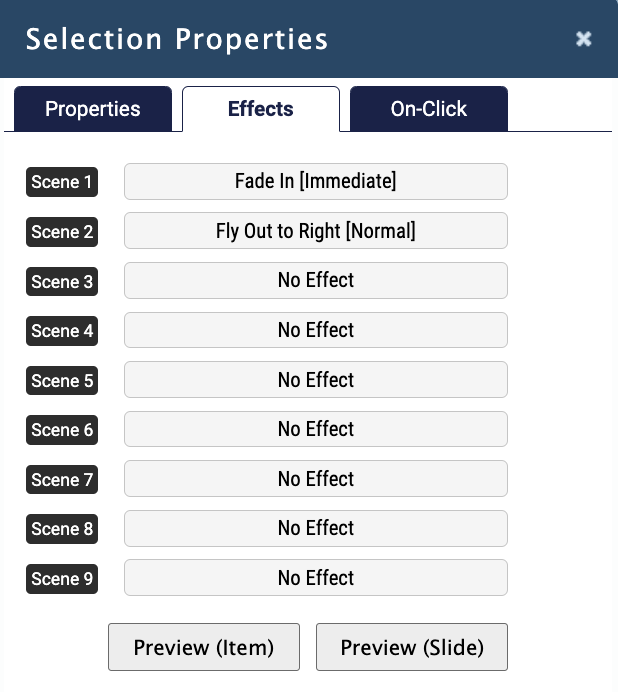
The effects are broken into 9 scenes that are started as soon as the slide comes into view (you can override this behavior using JavaScript). Each scene is run at the same time for all objects on the slide before moving on to the next scene, so once the slide comes into view scene 1 of the effects will automatically begin. Once scene 1 has finished for all objects on the slide, scene 2 will begin for all objects on the slide and so on - until all scenes have completed.
At the bottom of the Selection Effects screen, below the preview effect buttons is an indicator of how long the animations will take to complete for the entire slide from the time the student brings the slide into view.
You can use the Selection Effects to create complex animation such as having paragraphs of text fade in, having arrows fly across the screen to point to content, or having highlighting fade in on important elements of the slide.
Setting an Effect for a Scene
To set an effect for a scene, click on the scene bar to the right of the scene number with your object(s) selected. When you click on the scene bar another window will open allowing you to select the effect (Entrance effects bring an object into view on the slide, Exit effects remove an object from view).
On the left hand side of the Effects window you can select the speed in which an effect will be applied to the object(s). To remove an effect that has been set for a scene, click on the scene bar to the right of the scene number with your object(s) selected.
In the Effects window select the No Effect option and click OK.
Preview an Effect
To preview an effect that you’ve set for one or more objects, use the Preview (Item) and Preview (Slide) buttons. The Preview (Item) button allows you to preview the effects applied to just the currently selected object(s). The Preview (Slide) button allows you to preview all effects on all objects for the current slide (just like it will display for the user when they bring that slide into view).
The Selection Effects window allows you to configure animation effects that will be applied to the currently selected object(s) and run when the slide is viewed by the user.
The effects are broken into 9 scenes that are started as soon as the slide comes into view (you can override this behavior using JavaScript). Each scene is run at the same time for all objects on the slide before moving on to the next scene, so once the slide comes into view scene 1 of the effects will automatically begin. Once scene 1 has finished for all objects on the slide, scene 2 will begin for all objects on the slide and so on - until all scenes have completed.
At the bottom of the Selection Effects screen, below the preview effect buttons is an indicator of how long the animations will take to complete for the entire slide from the time the student brings the slide into view.
You can use the Selection Effects to create complex animation such as having paragraphs of text fade in, having arrows fly across the screen to point to content, or having highlighting fade in on important elements of the slide.
Setting an Effect for a Scene
To set an effect for a scene, click on the scene bar to the right of the scene number with your object(s) selected. When you click on the scene bar another window will open allowing you to select the effect (Entrance effects bring an object into view on the slide, Exit effects remove an object from view).
On the left hand side of the Effects window you can select the speed in which an effect will be applied to the object(s). To remove an effect that has been set for a scene, click on the scene bar to the right of the scene number with your object(s) selected.
In the Effects window select the No Effect option and click OK.
Preview an Effect
To preview an effect that you’ve set for one or more objects, use the Preview (Item) and Preview (Slide) buttons. The Preview (Item) button allows you to preview the effects applied to just the currently selected object(s). The Preview (Slide) button allows you to preview all effects on all objects for the current slide (just like it will display for the user when they bring that slide into view).