The Edit Tab
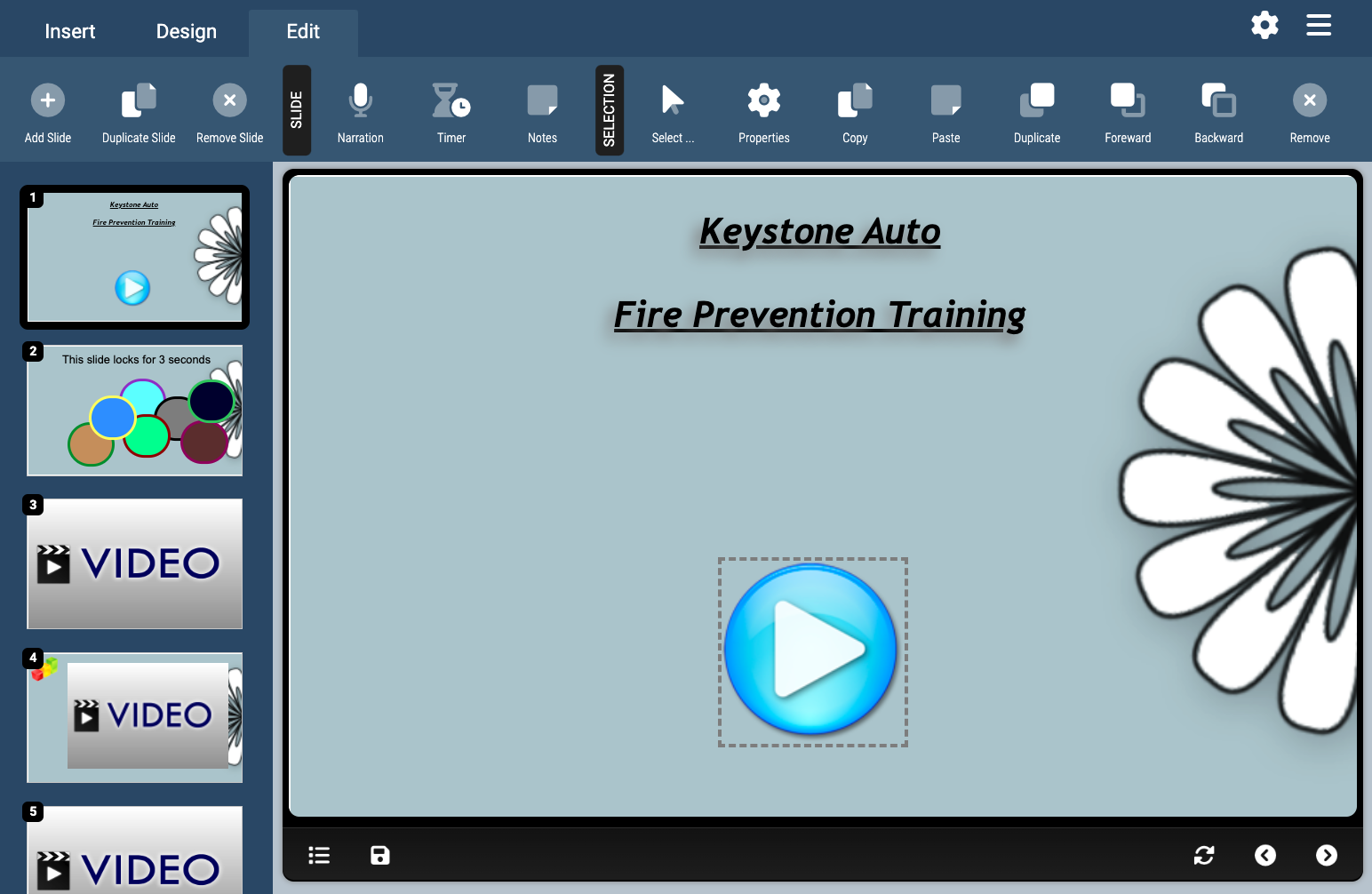
The Edit Tab allows you to edit the properties of the selected slide, edit the properties of the selected object(s), and copy/paste/remove object(s) on the slide.
Add Slide
Add a new slide to the module, selecting either one of the pre-defined layouts or blank, directly below the currently selected slide.
Duplicate Slide
Make and exact duplicate of the currently selected slide and insert the copied slide directly below it.
Remove Slide
Remove the currently selected slide from the module.
Slide Narration
Opens the Slide Properties window and allows you set an audio narration to be played along with the selected slide. The Slide Properties window can be moved to any location on the screen by clicking and holding the mouse button on the window titlebar and dragging-and-dropping to the desired location. For more information on Slide Narrations consult the Slide Narration section of this manual.
Slide Timer
Opens the Slide Properties window and allows you disable navigation for a specified amount of time when the selected slide is viewed by the user. The Slide Properties window can be moved to any location on the screen by clicking and holding the mouse button on the window titlebar and dragging-and-dropping to the desired location. For more information on Slide Timers consult the Slide Timer section of this manual.
Slide Notes
Opens the Slide Properties window and allows you set administrative notes for the selected slide. The Slide Properties window can be moved to any location on the screen by clicking and holding the mouse button on the window titlebar and dragging-and-dropping to the desired location. For more information on Slide Notes consult the Slide Notes section of this manual.
Selection
Allows you to instantly select any object on the current slide. All objects on the slide (text regions, images, videos, etc.) will be listed in the Selection dropdown. For more information on an object listed in the dropdown, hover your mouse over the object. The Selection dropdown is particular useful if you drag an object off the slide canvas completely out of view. You can use the Selection dropdown to select the object, even though it’s out of view, and then use the Selection Settings options to reposition the object back into view.
Selection Settings
Opens up the Selection Settings window, where you can position and size an object, set animation effects, and assign click events, for the currently selected object(s). The Selection Settings window can be moved to any location on the screen by clicking and holding the mouse button on the window titlebar and dragging-and-dropping to the desired location. For more information on the Selection Settings consult the Selection Properties, Selection Effects, and Selection Click Events sections of this manual.
Copy / Paste
Click the Copy button the currently selected object(s) to the clipboard. Once copied, the object(s) can be pasted into any slide by clicking the Paste button. Objects that are copied and pasted will have all the same properties and characteristics as the original objects.
Duplicate
Click the Duplicate button to make an exact copy of the current selected object(s) on the same slide.
Move Up
Click the Move Up button to move the currently selected object(s) towards the front of the slide, positioning them in front of other objects. This option is useful when layering objects on top of one another.
Move Back
Click the Move Back button to move the currently selected object(s) towards the back of the slide, positioning them in behind other objects. This option is useful when layering objects on top of one another.
Remove Item
Remove the currently selected object(s) from the slide.
The Edit Tab allows you to edit the properties of the selected slide, edit the properties of the selected object(s), and copy/paste/remove object(s) on the slide.
Add Slide
Add a new slide to the module, selecting either one of the pre-defined layouts or blank, directly below the currently selected slide.
Duplicate Slide
Make and exact duplicate of the currently selected slide and insert the copied slide directly below it.
Remove Slide
Remove the currently selected slide from the module.
Slide Narration
Opens the Slide Properties window and allows you set an audio narration to be played along with the selected slide. The Slide Properties window can be moved to any location on the screen by clicking and holding the mouse button on the window titlebar and dragging-and-dropping to the desired location. For more information on Slide Narrations consult the Slide Narration section of this manual.
Slide Timer
Opens the Slide Properties window and allows you disable navigation for a specified amount of time when the selected slide is viewed by the user. The Slide Properties window can be moved to any location on the screen by clicking and holding the mouse button on the window titlebar and dragging-and-dropping to the desired location. For more information on Slide Timers consult the Slide Timer section of this manual.
Slide Notes
Opens the Slide Properties window and allows you set administrative notes for the selected slide. The Slide Properties window can be moved to any location on the screen by clicking and holding the mouse button on the window titlebar and dragging-and-dropping to the desired location. For more information on Slide Notes consult the Slide Notes section of this manual.
Selection
Allows you to instantly select any object on the current slide. All objects on the slide (text regions, images, videos, etc.) will be listed in the Selection dropdown. For more information on an object listed in the dropdown, hover your mouse over the object. The Selection dropdown is particular useful if you drag an object off the slide canvas completely out of view. You can use the Selection dropdown to select the object, even though it’s out of view, and then use the Selection Settings options to reposition the object back into view.
Selection Settings
Opens up the Selection Settings window, where you can position and size an object, set animation effects, and assign click events, for the currently selected object(s). The Selection Settings window can be moved to any location on the screen by clicking and holding the mouse button on the window titlebar and dragging-and-dropping to the desired location. For more information on the Selection Settings consult the Selection Properties, Selection Effects, and Selection Click Events sections of this manual.
Copy / Paste
Click the Copy button the currently selected object(s) to the clipboard. Once copied, the object(s) can be pasted into any slide by clicking the Paste button. Objects that are copied and pasted will have all the same properties and characteristics as the original objects.
Duplicate
Click the Duplicate button to make an exact copy of the current selected object(s) on the same slide.
Move Up
Click the Move Up button to move the currently selected object(s) towards the front of the slide, positioning them in front of other objects. This option is useful when layering objects on top of one another.
Move Back
Click the Move Back button to move the currently selected object(s) towards the back of the slide, positioning them in behind other objects. This option is useful when layering objects on top of one another.
Remove Item
Remove the currently selected object(s) from the slide.