The Insert Tab
The Insert Tab contains everything you’ll need to add images, shapes, videos, and text to your slide content.
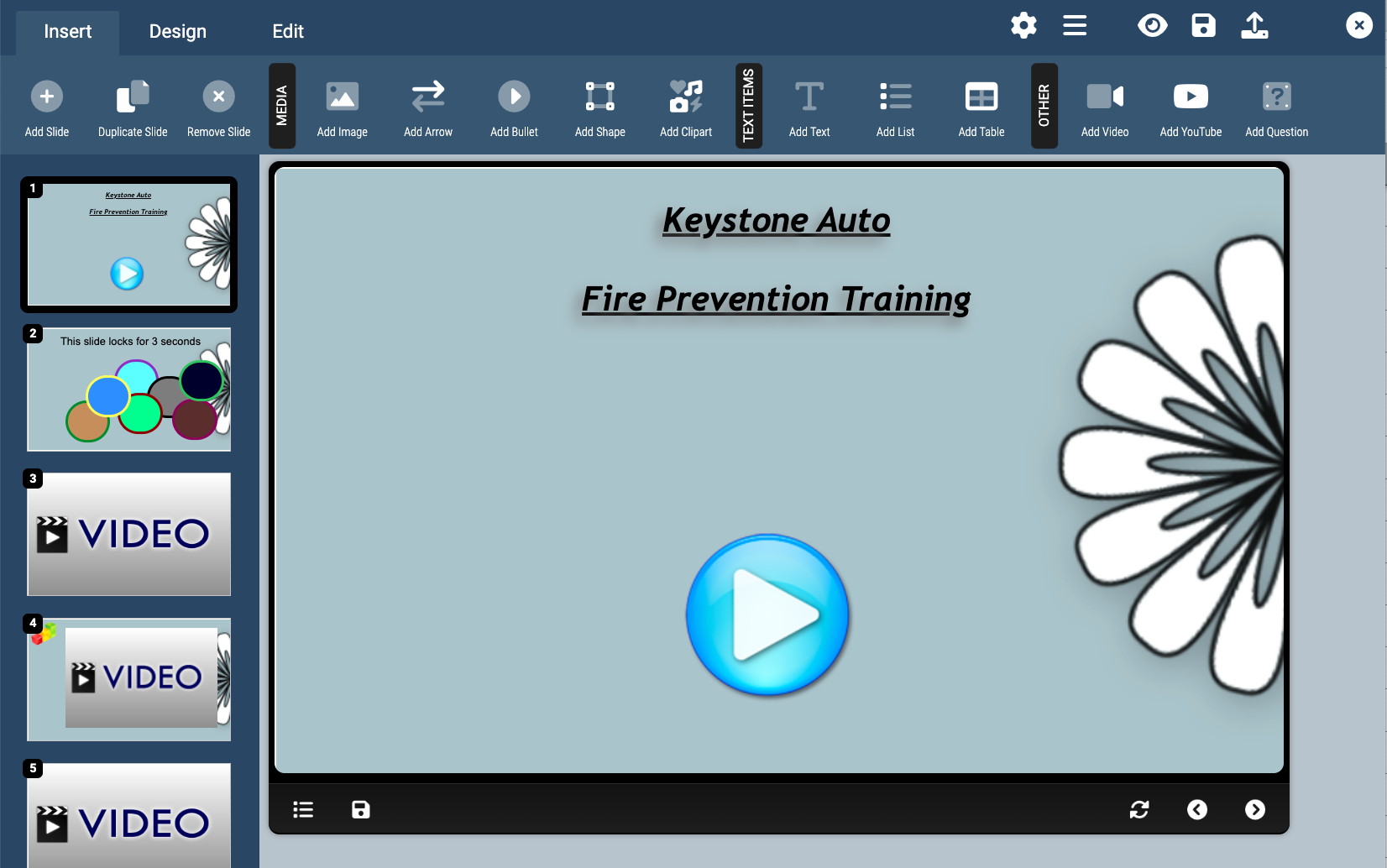
Add Slide
Add a new slide to the module, selecting either one of the pre-defined layouts or blank, directly below the currently selected slide.
Duplicate Slide
Make and exact duplicate of the currently selected slide and insert the copied slide directly below it.
Remove Slide
Remove the currently selected slide from the module.
Insert Image
Insert an existing image from your Axis File Library or upload and insert and image from your computer. Valid image types include .jpg, .gif, and .png.
Insert Arrow, Bullet, Shape, & Clipart
Use the Insert Arrow, Bullet, Shape, and Clipart. buttons to insert one of the many pieces of built-in clipart (or vector shapes) included with the SlidePoint Editor.
Insert Text Region
Insert a text region into the current slide using the selected style (foreground/background color). Once inserted, you can edit the text inside a text region by double-clicking on the region and typing in your text. You can also change the foreground and background color, change the font-type and size, and more through the Design tab.Insert List
Insert a numbered or bulleted list into the current slide. Once inserted, a list behaves similarly to a text region, where you can double click on the list object to edit the text inside.
Insert Table
Insert a table into the current slide. To edit the contents of a table-cell, double-click on the cell. In addition to being able to resize the overall table by dragging the table borders, you can also resize the cells within by dragging the cell borders inside the table.
Insert Video
Insert a video from either your Axis LMS File Library, or, upload and insert from your computer. Videos inserted into the SlidePoint Editor should be in .mp4 format for maximum compatibility across devices, but legacy .swf format videos will also be accepted for use in this version, although device compatibility for flash videos is rapidly depleting. Note: Video objects that use legacy flash (.swf) do not support opacity, on-click events, and will always appear above image and text objects regardless of how you move-forward and/or move-backward.
Insert YouTube
Insert a YouTube video into the current slide. To insert the video, copy and paste the URL of the YouTube video you would like to insert.
Note: YouTube objects do not support opacity, on-click events, and will always appear above image and text objects regardless of how you move-forward and/or move-backward.
Insert Question
Insert a question into the current slide. Inserted questions are multiple choice style with up to four answer choices. When a user clicks on an answer, the feedback for that particular choice will be displayed to the user.
Use the CSS Class field in the Insert Question window to assign an additional CSS class to the answer choices that you can format using the Extra CSS section of the module’s settings.
The Insert Tab contains everything you’ll need to add images, shapes, videos, and text to your slide content.
Add Slide
Add a new slide to the module, selecting either one of the pre-defined layouts or blank, directly below the currently selected slide.
Duplicate Slide
Make and exact duplicate of the currently selected slide and insert the copied slide directly below it.
Remove Slide
Remove the currently selected slide from the module.
Insert Image
Insert an existing image from your Axis File Library or upload and insert and image from your computer. Valid image types include .jpg, .gif, and .png.
Insert Arrow, Bullet, Shape, & Clipart
Use the Insert Arrow, Bullet, Shape, and Clipart. buttons to insert one of the many pieces of built-in clipart (or vector shapes) included with the SlidePoint Editor.
Insert Text Region
Insert a text region into the current slide using the selected style (foreground/background color). Once inserted, you can edit the text inside a text region by double-clicking on the region and typing in your text. You can also change the foreground and background color, change the font-type and size, and more through the Design tab.Insert List
Insert a numbered or bulleted list into the current slide. Once inserted, a list behaves similarly to a text region, where you can double click on the list object to edit the text inside.
Insert Table
Insert a table into the current slide. To edit the contents of a table-cell, double-click on the cell. In addition to being able to resize the overall table by dragging the table borders, you can also resize the cells within by dragging the cell borders inside the table.
Insert Video
Insert a video from either your Axis LMS File Library, or, upload and insert from your computer. Videos inserted into the SlidePoint Editor should be in .mp4 format for maximum compatibility across devices, but legacy .swf format videos will also be accepted for use in this version, although device compatibility for flash videos is rapidly depleting. Note: Video objects that use legacy flash (.swf) do not support opacity, on-click events, and will always appear above image and text objects regardless of how you move-forward and/or move-backward.
Insert YouTube
Insert a YouTube video into the current slide. To insert the video, copy and paste the URL of the YouTube video you would like to insert.
Note: YouTube objects do not support opacity, on-click events, and will always appear above image and text objects regardless of how you move-forward and/or move-backward.
Insert Question
Insert a question into the current slide. Inserted questions are multiple choice style with up to four answer choices. When a user clicks on an answer, the feedback for that particular choice will be displayed to the user.
Use the CSS Class field in the Insert Question window to assign an additional CSS class to the answer choices that you can format using the Extra CSS section of the module’s settings.