Managing Slides
Adding a Slide
To add a new slide into a module, click the Add Slide button under the Insert or Edit tab (to select a pre-defined slide layout or a blank slide) or in the bottom Status Bar (to insert a blank slide).
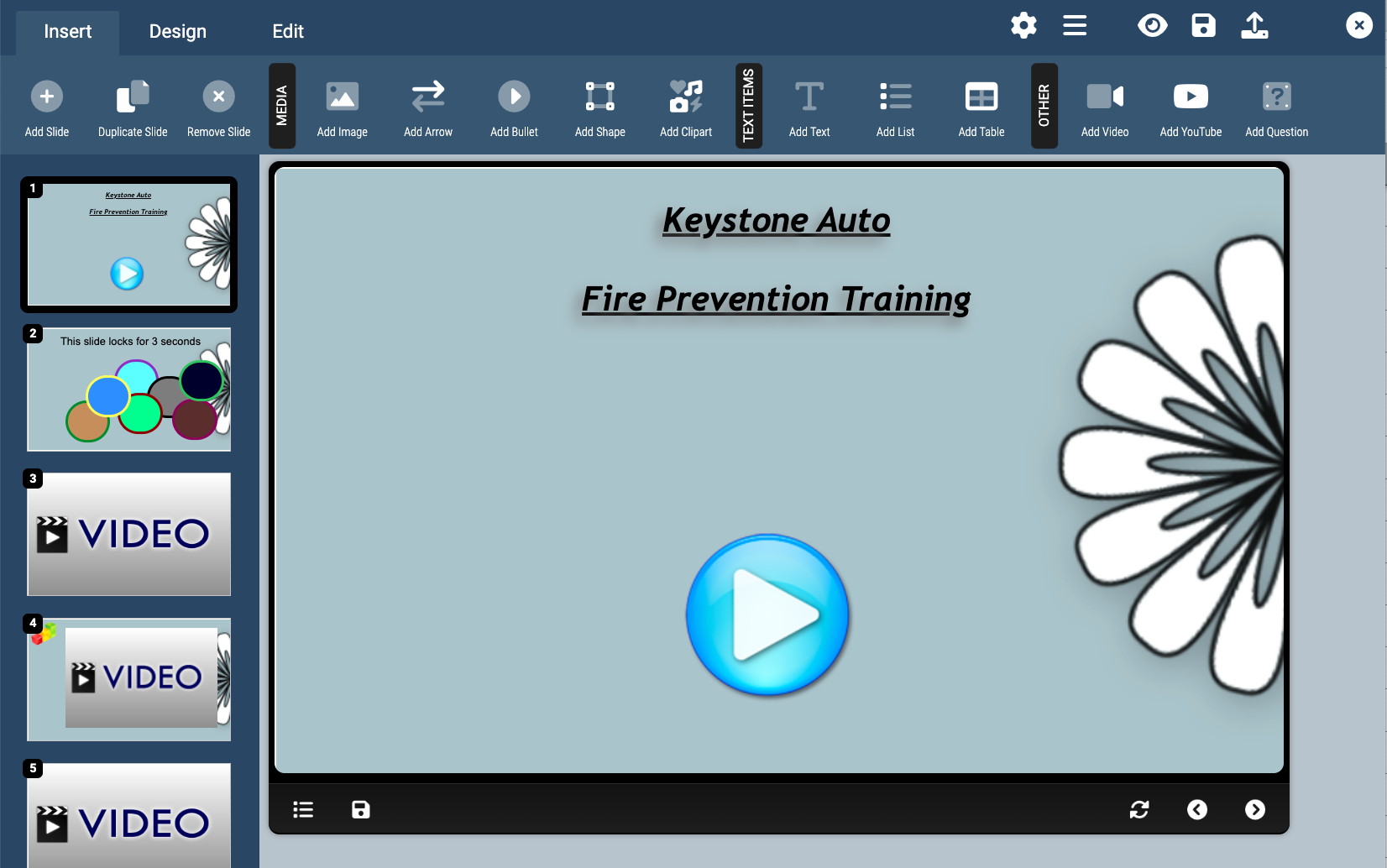
New slides will be inserted directly below the currently selected slide.
Duplicating a Slide
To duplicate a slide, select the slide you would like to duplicate and click the Duplicate Slide button under the Insert or Edit tab or in the bottom Status Bar. The duplicated slide will be an exact copy of the selected slide and will be inserted directly below it.
Removing a Slide
To remove a slide, select the slide you would like to remove and click the Remove Slide button under the Insert or Edit tab or in the bottom Status Bar.
Re-Ordering Slides
The order of slides as they appear in the Slide Listing is the order that they will be presented to your user in the module. You can change the order that your slides appear in the module by dragging-and-dropping slides above or below one another.
Adding a Slide
To add a new slide into a module, click the Add Slide button under the Insert or Edit tab (to select a pre-defined slide layout or a blank slide) or in the bottom Status Bar (to insert a blank slide).
New slides will be inserted directly below the currently selected slide.
Duplicating a Slide
To duplicate a slide, select the slide you would like to duplicate and click the Duplicate Slide button under the Insert or Edit tab or in the bottom Status Bar. The duplicated slide will be an exact copy of the selected slide and will be inserted directly below it.
Removing a Slide
To remove a slide, select the slide you would like to remove and click the Remove Slide button under the Insert or Edit tab or in the bottom Status Bar.
Re-Ordering Slides
The order of slides as they appear in the Slide Listing is the order that they will be presented to your user in the module. You can change the order that your slides appear in the module by dragging-and-dropping slides above or below one another.