The Editor Interface
The SlidePoint Editor is where you author the slides contained in your module. Note that the editor requires a desktop browser, and is supported on Edge, Firefox, and Chrome browsers.
When you first open the SlidePoint Editor for the first time a Tips window will be displayed giving you various tips on using the SlidePoint Editor. Note: You can disable the Tips window in the Editor’s Settings.
The Editor Interface
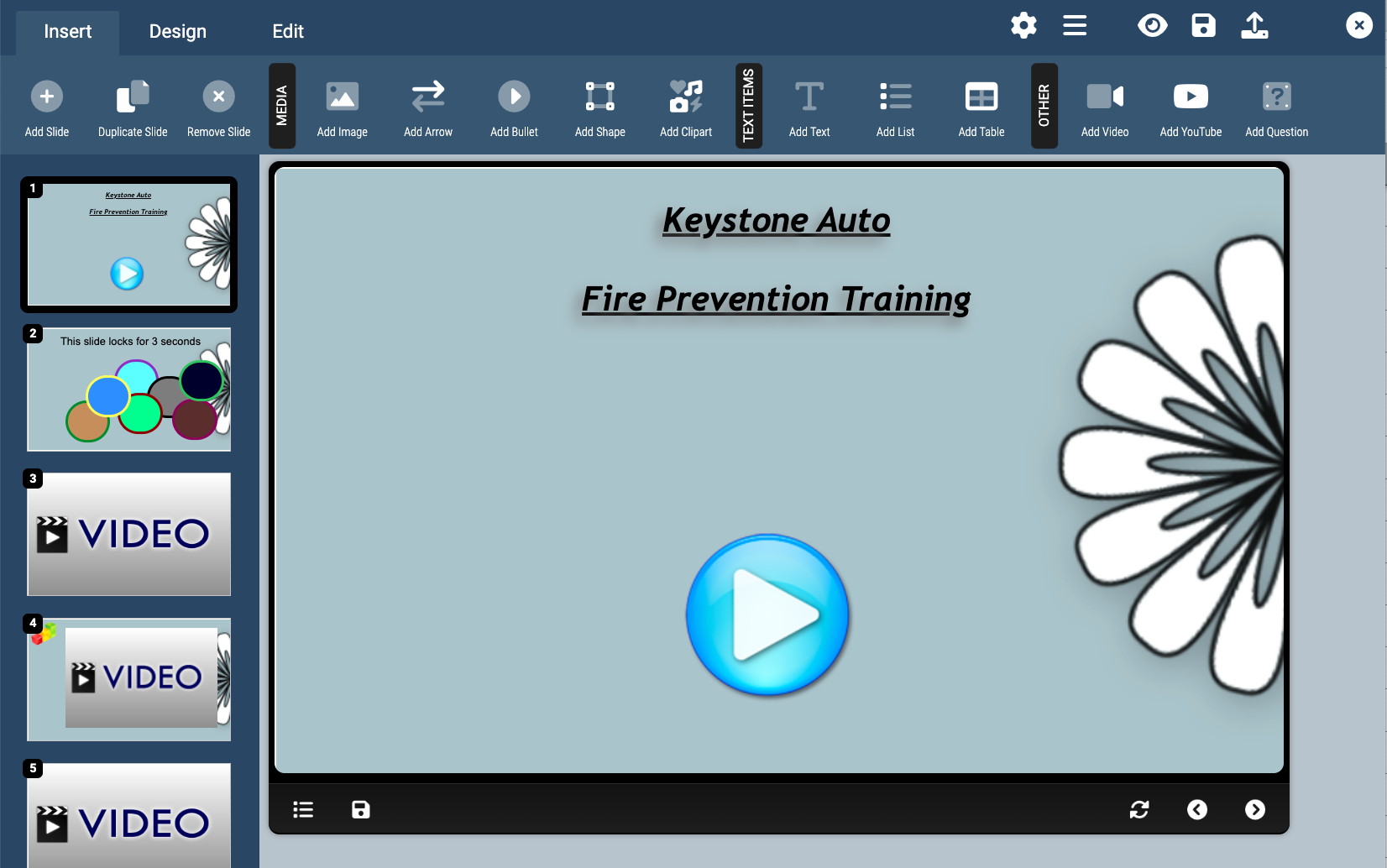
The SlidePoint Editor can be broken down into four sections:
The Toolbar
The toolbar at the top of editor holds the Insert, Design, and Edit tabs (consult the section of the manual for each tab for more information) along with the editor toolbar in the top-right corner of the screen. The editor toolbar allows you to preview, save, publish, and more. From left to right:
- Configure (gear icon): Open the Editor Settings window and configure the SlidePoint Editor settings.
- Menu (menu icon): Open the Quick Menu, which gives you quick access to commonly used actions from throughout the editor. The Quick Menu can be dragged around the screen and resized to allow easy access while authoring modules.
- Preview (magnifying glass icon): Preview the current module as it would appear to your end user. When previewing a module you will be prompted to save the module – you must save the module before it can be previewed.
- Save (disk icon): Save the current module. Note: Saving does not automatically publish the module unless the “Save & Publish” setting is enabled in the Editor Settings.
- Publish (globe icon): Saves and automatically published the module.
- Close (X icon): Closes the SlidePoint Editor.
The Slide Listing
The Slide Listing located on the left hand slide of the editor displays each slide contained within a module in the order that they will appear inside the module.
Clicking on a slide thumbnail on the Slide Listing will bring it into view in the Slide Canvas where you can make changes to the content on that slide. You can change the order that your slides appear in the module by dragging-and-dropping slides above or below one another.
The Slide Canvas
The Slide Canvas is the main section of the editor, where you can actually edit, insert, and remove the content that will appear on a slide. You can move objects on the slide by clicking on the object and using your mouse to drag-and-drop the object to the desired location. You can also resize objects on the slide by positioning your mouse on the edge or corner of the bounding box surrounding a selected object and dragging the edge to the desired size.
Note: Only the contents of the slide itself can be modified using the SlidePoint editor. The navigation bar, table of contents, area surrounding the slide, etc. that appear when a user is viewing the module can be modified using the Extra CSS properties in the module’s settings screen outside the editor.
The Status Bar
The Status Bar appears at the bottom of the screen. In the Status Bar, directly under the Slide Listing, are shortcuts to quickly add, duplicate, and remove a slide from the module. The title of the module you are currently editing appears on the right side of the Status Bar.
The SlidePoint Editor is where you author the slides contained in your module. Note that the editor requires a desktop browser, and is supported on Edge, Firefox, and Chrome browsers.
When you first open the SlidePoint Editor for the first time a Tips window will be displayed giving you various tips on using the SlidePoint Editor. Note: You can disable the Tips window in the Editor’s Settings.
The Editor Interface
The SlidePoint Editor can be broken down into four sections:
The Toolbar
The toolbar at the top of editor holds the Insert, Design, and Edit tabs (consult the section of the manual for each tab for more information) along with the editor toolbar in the top-right corner of the screen. The editor toolbar allows you to preview, save, publish, and more. From left to right:
- Configure (gear icon): Open the Editor Settings window and configure the SlidePoint Editor settings.
- Menu (menu icon): Open the Quick Menu, which gives you quick access to commonly used actions from throughout the editor. The Quick Menu can be dragged around the screen and resized to allow easy access while authoring modules.
- Preview (magnifying glass icon): Preview the current module as it would appear to your end user. When previewing a module you will be prompted to save the module – you must save the module before it can be previewed.
- Save (disk icon): Save the current module. Note: Saving does not automatically publish the module unless the “Save & Publish” setting is enabled in the Editor Settings.
- Publish (globe icon): Saves and automatically published the module.
- Close (X icon): Closes the SlidePoint Editor.
The Slide Listing
The Slide Listing located on the left hand slide of the editor displays each slide contained within a module in the order that they will appear inside the module.
Clicking on a slide thumbnail on the Slide Listing will bring it into view in the Slide Canvas where you can make changes to the content on that slide. You can change the order that your slides appear in the module by dragging-and-dropping slides above or below one another.
The Slide Canvas
The Slide Canvas is the main section of the editor, where you can actually edit, insert, and remove the content that will appear on a slide. You can move objects on the slide by clicking on the object and using your mouse to drag-and-drop the object to the desired location. You can also resize objects on the slide by positioning your mouse on the edge or corner of the bounding box surrounding a selected object and dragging the edge to the desired size.
Note: Only the contents of the slide itself can be modified using the SlidePoint editor. The navigation bar, table of contents, area surrounding the slide, etc. that appear when a user is viewing the module can be modified using the Extra CSS properties in the module’s settings screen outside the editor.
The Status Bar
The Status Bar appears at the bottom of the screen. In the Status Bar, directly under the Slide Listing, are shortcuts to quickly add, duplicate, and remove a slide from the module. The title of the module you are currently editing appears on the right side of the Status Bar.