Add a New Module
To create a new SlidePoint module, click Learning > Online Courses > Work with Learning Objects > Learning Objects.
To add a new SlidePoint into your account, click the Add button and then click the New SlidePoint icon.
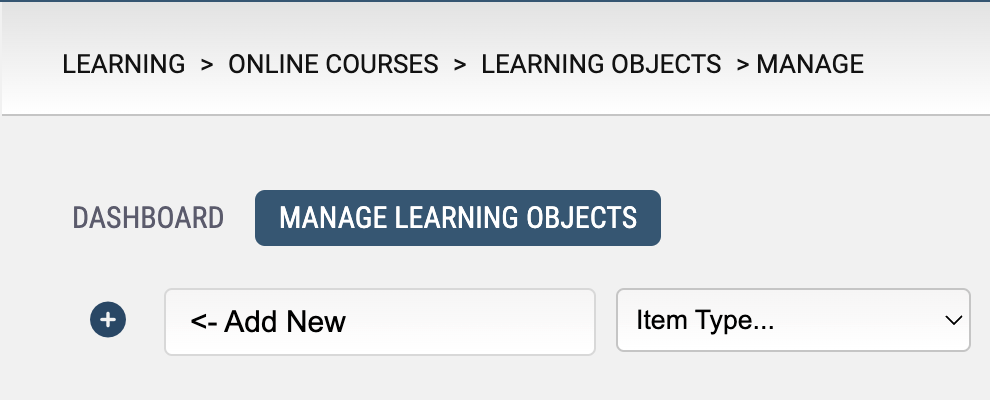
You will be prompted to enter a name for your SlidePoint module (this is the internal name as it appears to you – the Administrator - in the Axis LMS Admin area. You can go into the module settings and change the name that will appear to the user; however you will not be able to change this internal name as it appears to you inside the Admin area).
Note: Learning Object names should be under 100 characters and cannot contain single or double quotes.
Once you’ve created the presentation, it will automatically take on the settings defined in the template and will contain one empty slide. To add content/slides to this module, click the Open Editor icon to open the module in the SlidePoint Editor.
To create a new SlidePoint module, click Learning > Online Courses > Work with Learning Objects > Learning Objects.
To add a new SlidePoint into your account, click the Add button and then click the New SlidePoint icon.
You will be prompted to enter a name for your SlidePoint module (this is the internal name as it appears to you – the Administrator - in the Axis LMS Admin area. You can go into the module settings and change the name that will appear to the user; however you will not be able to change this internal name as it appears to you inside the Admin area).
Note: Learning Object names should be under 100 characters and cannot contain single or double quotes.
Once you’ve created the presentation, it will automatically take on the settings defined in the template and will contain one empty slide. To add content/slides to this module, click the Open Editor icon to open the module in the SlidePoint Editor.