The SlidePoint Manage Screen
The Manage Screen has various functions and options.
- To edit a module, click the
Open Editor tile to open up the module in the SlidePoint Editor. More information on the SlidePoint Editor can be found in The SlidePoint Editor section of this manual.
- To Use AI to generate slides for the presentation, click the
Auto-Generate Slides tile. From there you simply enter a subject or a document of text to use to generate the slides from.
- To Audit Courses this module is in, click the
Course Audit tile.
- To import a PowerPoint into this Module (replacing the content already here), click the
Import from PowerPoint tile (this will remove all content/slides from the Module and replace with the imported PowerPoint).
- To preview a module, click the
Preview Presentation tile to open up a preview of the module in a new window. The preview displayed will be of the last saved version of the module and not necessarily the currently published version.
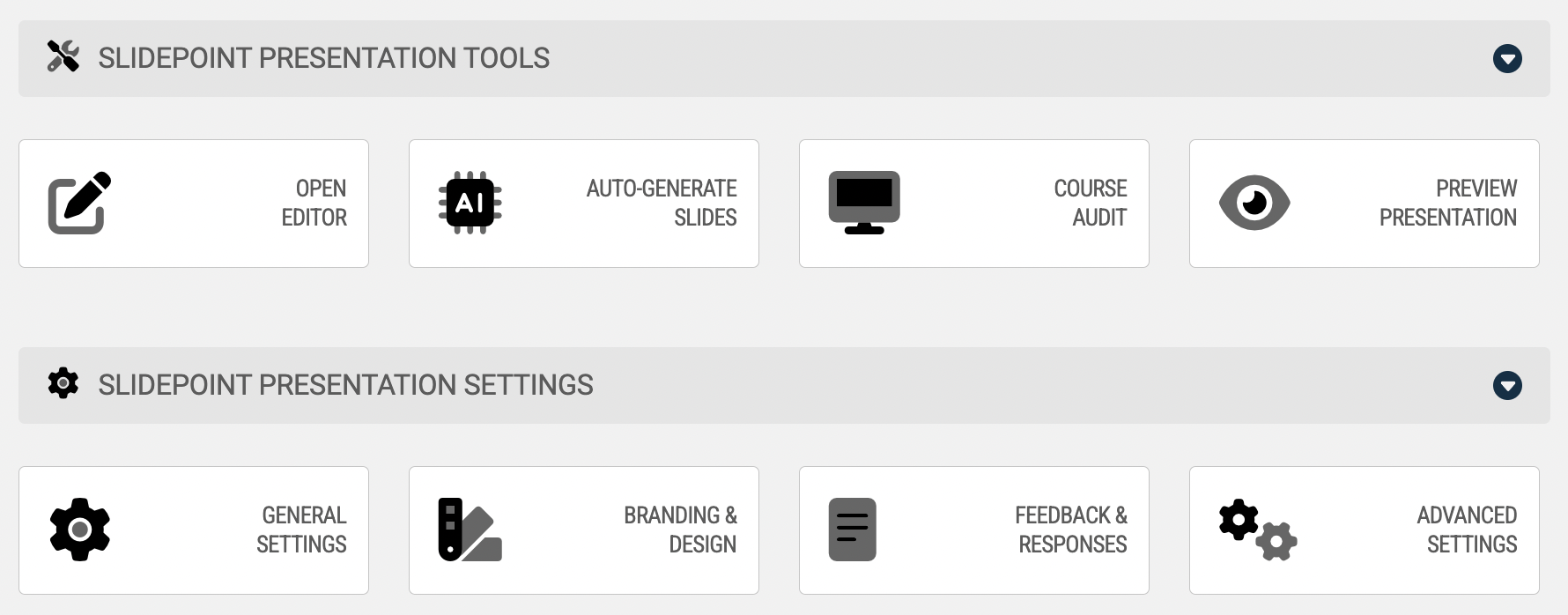
- To configure an individual module’s settings, click the
General Settings tile. More information on module settings can be found in the SlidePoint Module Settings section of this manual.
- To configure branding and visuals, click the
Branding & Design tile. More information on module settings can be found in the SlidePoint Module Settings section of this manual.
- To configure the feedback and response pages, click the
Feedback & Responses tile. More information on module settings can be found in the SlidePoint Module Settings section of this manual.
- To enter JavaScript or tag the module with Keyword tags, click the
Advanced Settings tile. More information on module settings can be found in the SlidePoint Module Settings section of this manual.
- To publish/republish a module, click the
Publish tile. More information on publishing modules and when you need to republish can be found in the Publishing/Republishing a SlidePoint Module section of this manual.
- To copy a module (making an exact copy of all slides, settings, etc.), click the
Copy tile. When copying a module you’ll be prompted to enter a name for the new module and an exact copy of the existing module will be created. Note: Copying a module does not automatically publish the module. After copying a module you’ll still need to publish it in order to insert it into your courses.
- To delete a module, click the
Delete tile. You cannot delete a module that exists inside of an active online course.
The Manage Screen has various functions and options.
- To edit a module, click the
Open Editortile to open up the module in the SlidePoint Editor. More information on the SlidePoint Editor can be found in The SlidePoint Editor section of this manual. - To Use AI to generate slides for the presentation, click the
Auto-Generate Slidestile. From there you simply enter a subject or a document of text to use to generate the slides from. - To Audit Courses this module is in, click the
Course Audittile. - To import a PowerPoint into this Module (replacing the content already here), click the
Import from PowerPointtile (this will remove all content/slides from the Module and replace with the imported PowerPoint). - To preview a module, click the
Preview Presentationtile to open up a preview of the module in a new window. The preview displayed will be of the last saved version of the module and not necessarily the currently published version.
- To configure an individual module’s settings, click the
General Settingstile. More information on module settings can be found in the SlidePoint Module Settings section of this manual. - To configure branding and visuals, click the
Branding & Designtile. More information on module settings can be found in the SlidePoint Module Settings section of this manual. - To configure the feedback and response pages, click the
Feedback & Responsestile. More information on module settings can be found in the SlidePoint Module Settings section of this manual. - To enter JavaScript or tag the module with Keyword tags, click the
Advanced Settingstile. More information on module settings can be found in the SlidePoint Module Settings section of this manual. - To publish/republish a module, click the
Publishtile. More information on publishing modules and when you need to republish can be found in the Publishing/Republishing a SlidePoint Module section of this manual. - To copy a module (making an exact copy of all slides, settings, etc.), click the
Copytile. When copying a module you’ll be prompted to enter a name for the new module and an exact copy of the existing module will be created. Note: Copying a module does not automatically publish the module. After copying a module you’ll still need to publish it in order to insert it into your courses. - To delete a module, click the
Deletetile. You cannot delete a module that exists inside of an active online course.